Agents in Dialogue Part 1: MCP - The Universal Connector for AI and its Tools
Michael Mueller11 min read
Agents in Dialogue Part 1 of 3: MCP - The Universal Connector for AI and its Too…
In this technical blog post, we're going to bridge the critical gap between team collaboration in Slack and the official record in Atlassian. We'll be using n8n as a developer-friendly automation engine, leveraging Model Context Protocol, and deploying everything on a production-grade Google Kubernetes Engine (GKE) cluster, managed with Terraform and Helm. This Infrastructure as Code approach ensures our system is not only powerful but also resilient, scalable, and reproducible.
In just about every company I've seen, the data lives in different places. This isn't a new insight, but it's one that always causes a special kind of pain when we look at how our teams actually work.
Think about it: all the "official" stuff - the project tasks, bug reports, the sacred technical docs, and knowledge base articles - is neatly tucked away in Atlassian's world, in Jira and Confluence. But where does the work happen? Where do we solve problems, debate solutions, and make decisions? Mostly in Slack.
This forces a constant, jarring context switch. It's a digital wall that we make our teams climb over, again and again. You're in the middle of a conversation, you need a piece of information, so you have to leave the flow, open a browser, log in, hunt for what you need, and then copy-paste it back into the chat. It feels like a small thing, but multiply that by dozens of times a day across an entire team, and the drag on productivity is massive. It's not just about wasted time; it's about breaking the momentum of collaboration. This is even more true if you happen to know about the search functionality within Atlassian tools.
Recently, Atlassian announced the availability of their MCP Server, which enables us to build a conversational interface right where the team lives, in Slack, that understands what you're asking for and fetches the information from Jira or Confluence for you. It is just like that colleague who knows all the right places to look for information. An assistant that can query the Atlassian suite, give you the gist of a long document, or even create a new ticket for you, all without ever leaving the Slack channel. This isn't just about data retrieval; it's about weaving data access directly into the fabric of our collaborative workflow.
We're going to walk you through the entire journey to a production-grade system. We've built this on a powerful, modern stack: the developer-first automation of n8n, using the Model Context Protocol (MCP) running on Google Kubernetes Engine (GKE).
At the very core of our solution is the Model Context Protocol, or MCP. You can read more about MCP in our previous blog post.
The world before MCP was a place Anthropic called the "N×M" data integration problem. In that world, every AI app or LLM (N) that needed to touch the real world required a custom-built connector for every single data source or tool (M) it wanted to use. The result was an unscalable 'spaghetti' of integrations. An LLM that could talk to Salesforce was mute when it came to Jira, unless you wrote a whole new chunk of code.
MCP fixes this by providing a universal protocol, built on solid, well-understood standards like JSON-RPC 2.0. This means a developer can build one MCP-compliant server for their data source, and any MCP-compliant AI client can use it, no matter what LLM is under the hood. It's a move from a tangled mess to a plug-and-play world for AI.
The protocol itself is a pretty straightforward client-server model, designed for secure and stateful conversations.
The server tells the client what it can do through three main concepts:
To run the logic for our chatbot, we're using n8n, a flexible workflow automation platform. It gives you a visual, node-based way to build workflows, but it always lets you drop down into code when you need to handle complex logic.
The choice of n8n allows us to use its native support for AI workflows. The platform isn't just a simple orchestrator; it's an environment for building and managing AI agents. n8n provides dedicated nodes for creating multi-step AI agents right on the canvas. We can define the agent's goals, pick our LLM, and give it a set of tools to work with.
With our automation engine selected, we need to build the bridge to our Atlassian data. This means we need an MCP server that speaks both Jira and Confluence. While Atlassian has an official option, it is limited for use with Anthropic, at least for now. We found an open-source MCP server for Atlassian that we used instead.
The MCP server we used is this: https://github.com/sooperset/mcp-atlassian.
The sooperset/mcp-atlassian server provides the tools for talking to Atlassian, covering a wide range of read and write operations like jira_create_issue, jira_search, confluence_get_page, and confluence_create_page. It also supports multiple ways to authenticate - API Tokens for Cloud, Personal Access Tokens (PATs) for Server/Data Center, and OAuth 2.0 for more complex setups.
Configuration is all handled through environment variables, which makes it dead simple to deploy in a containerized environment like Kubernetes. Here are some of the key variables we'll need to set:
| Variable | Description | Example |
|---|---|---|
CONFLUENCE_URL | The base URL of the Confluence instance. | https://your-company.atlassian.net/wiki |
CONFLUENCE_USERNAME | The email address for the Atlassian account. | user@example.com |
CONFLUENCE_TOKEN | The Atlassian API token for authentication. | your_api_token |
JIRA_URL | The base URL of the Jira instance. | https://your-company.atlassian.net |
JIRA_USERNAME | The email address for the Atlassian account. | user@example.com |
JIRA_TOKEN | The Atlassian API token for authentication. | your_api_token |
READ_ONLY_MODE | Set this to "true" to disable all write operations for extra safety. | "true" |
ENABLED_TOOLS | A comma-separated list to explicitly enable only the tools you want. | "confluence_search,jira_get_issue" |
With the architecture mapped out, it's time to get our hands dirty and build the thing. We're deploying our entire stack on Google Kubernetes Engine (GKE), which gives us a managed, scalable, and resilient home for our containerized n8n and MCP server apps. We're managing the whole deployment using Infrastructure as Code (IaC), which means our setup will be reproducible, version-controlled, and automated.
Our deployment isn't just a simple docker run command. We're building a setup that's ready for enterprise use, with automated SSL, DNS, persistent storage, and high availability baked in.
Here's a quick look at the cast of characters in our deployment and the role each one plays:
| Component | Role in the Architecture |
|---|---|
| Google Kubernetes Engine (GKE) | Our managed Kubernetes from Google. It's the core platform that will orchestrate and manage our applications. |
| Terraform | Our IaC tool of choice. We use it to define and provision all our GCP resources - the GKE cluster, VPC network, and our Cloud SQL database. |
| Helm | The package manager for Kubernetes. We use it to deploy and manage complex apps like n8n and its dependencies using reusable packages called "charts." |
| PostgreSQL | Our relational database running in Kubernetes. It provides persistent storage for n8n's workflows, credentials, and execution history, so we don't lose data when pods restart. |
| ingress-nginx | A Kubernetes Ingress controller that acts as the front door to our cluster. It manages all external HTTP/S traffic and routes it to the right internal services (like the n8n UI). |
| cert-manager | A native Kubernetes certificate management tool that automates getting and renewing SSL/TLS certificates from issuers like Let's Encrypt. All our traffic will be encrypted. |
| external-dns | A Kubernetes service that automatically syncs our exposed services with our DNS provider. It will create the DNS records in Google Cloud DNS to point our domain to our n8n instance. |
The benefits of this approach is that it's declarative and GitOps-friendly. We define our infrastructure in Terraform files and our applications in Helm. The complete state of our system is captured in code. This code lives in a Git repository, which gives us version control, peer reviews for changes, and a full audit trail of our infrastructure. While we'll walk through the manual commands here, this foundation is exactly what you need for a fully automated GitOps workflow with tools like Argo CD or Flux.
First, we'll stand up the cloud infrastructure with Terraform. This ensures our environment is consistent and repeatable every time.
Prep the GCP Project: Before we run Terraform, we need to create a project in Google Cloud and enable the right APIs. We have a simple shell script, setup-gcp.sh, that handles this for us. It will also generate a .tf.env file that will be used in the next step.
Define and Deploy Infrastructure: Our Terraform files define all the GCP resources. The variables.tf file holds customizable parameters like our project ID, region, and zone. The main config files (gke.tf, providers.tf and outputs.tf) define the GKE cluster.
To deploy it all, we run the standard Terraform commands:
Shell
# Load environment variables from our config file
source .tf.env

# Initialize the Terraform workspace
terraform init

# See what Terraform plans to do
terraform plan

# Apply the plan and build the resources
terraform apply
Once the GKE cluster is up and running, we need to configure kubectl, the Kubernetes command-line tool, to talk to it.
gcloud command will fetch the cluster's credentials and configure kubectl for us automatically:
gcloud container clusters get-credentials n8n-cluster \
    --region $REGION \
    --project $PROJECT_ID
external-dns component needs permission to create DNS records in Google Cloud DNS. For our setup, we have a DNS zone delegated to another Google Cloud project, and we will use this with the external-dns in our project. You can also set this up differently to make it work for your setup. For our case, we have created a shell script, setup-dns.sh, that handles the cross-project access by creating a GCP service account with the dns.admin role and binding it to a Kubernetes service account. This will allow external-dns to securely manage DNS records, even if our DNS zone is in a different GCP project.With the infrastructure ready, we use Helm to deploy the essential in-cluster services that will support our main applications.
helm install cert-manager jetstack/cert-manager \
  --namespace cert-manager \
  --create-namespace \
  --version v1.18.0 \
  --set crds.enabled=true
helm install ingress-nginx ingress-nginx/ingress-nginx \
  --namespace ingress-nginx \
  --create-namespace \
  --version 4.12.3 \
  --set controller.service.type=LoadBalancer
Now for the main event: deploying our core applications.
n8n-stack that deploys n8n with all the necessary configs. We'll first edit the values-production.yaml file to customize our deployment, setting our domain name, deploying our PostgreSQL database, and providing an email for Let's Encrypt.
helm install n8n ./n8n-stack \
  --namespace n8n \
  --create-namespace \
  --values ./n8n-stack/values-production.yaml \
  --wait \
  --timeout 10m
Deploy the mcp-atlassian Server: We'll deploy the https://github.com/sooperset/mcp-atlassian MCP server with all the things required: mcp-atlassian.yaml.
Secret to securely hold our Atlassian API key, which you'll need to create here: https://id.atlassian.com/manage-profile/security/api-tokens.Deployment the Docker image version ghcr.io/sooperset/mcp-atlassian:{VERSION}. We'll populate the environment variables in the container from our Secret.Service of type ClusterIP. This will expose the Deployment inside the cluster at a stable DNS name, like mcp-atlassian.n8n.svc.cluster.local, so our n8n pods can find it.We then apply this manifest to our cluster:
kubectl apply -f mcp-atlassian-deployment.yaml
After deploying, we need to make sure everything is running as expected.
n8n namespace:
kubectl get pods -n n8n
We want to see all pods in the Running state.
Inspect the Ingress: Find the public URL of our n8n instance:
kubectl get ingress -n n8n
This will show us the domain name and the external IP of the load balancer.
View Logs: If things aren't working, logs are our best friend:
# View n8n logs
kubectl logs -n n8n -l app.kubernetes.io/name=n8n-stack -f

# View MCP server logs
kubectl logs -n n8n -l app=mcp-atlassian -f
Troubleshooting Common Issues:
Pending: Run kubectl describe pod <pod-name> -n n8n. This usually points to resource shortages or problems with storage.kubectl describe certificate -n n8n. This will show you events from cert-manager, which can tell you about DNS propagation issues or rate limits from Let's Encrypt.external-dns pods to make sure they've seen the Ingress and created the DNS record.With our entire infrastructure stood up and all our services running, we're ready to build the n8n workflow that brings our AI chatbot to life. This is where we wire everything together on the n8n canvas: the Slack interface, our AI brain, and the Atlassian toolset.
Before we build the workflow itself, we need to configure n8n to connect to Slack and Google's Vertex AI. This involves setting up credentials, a one-time task that securely stores the keys n8n needs to access these services.
First, we'll give n8n permission to act on our behalf in Slack.
app_mentions:read: To see when it's mentioned.chat:write: To post messages back in the channel.channels:history: To read messages in public channels it's a part of.groups:history: To read messages in private channels it's invited to.channels:join: To join public channels in a workspace.channels:read: To view basic information about a channel.xoxb-). Copy this token.xoxb- token into the "Access Token" field, and save.app_mention. “Save” and you're done.Next, we'll connect n8n to Google's Vertex AI to access the Gemini models.
n8n-vertex-ai-user) and a description.With these credentials in place, n8n now has secure access to both Slack and Vertex AI, and we can start building the workflow logic.
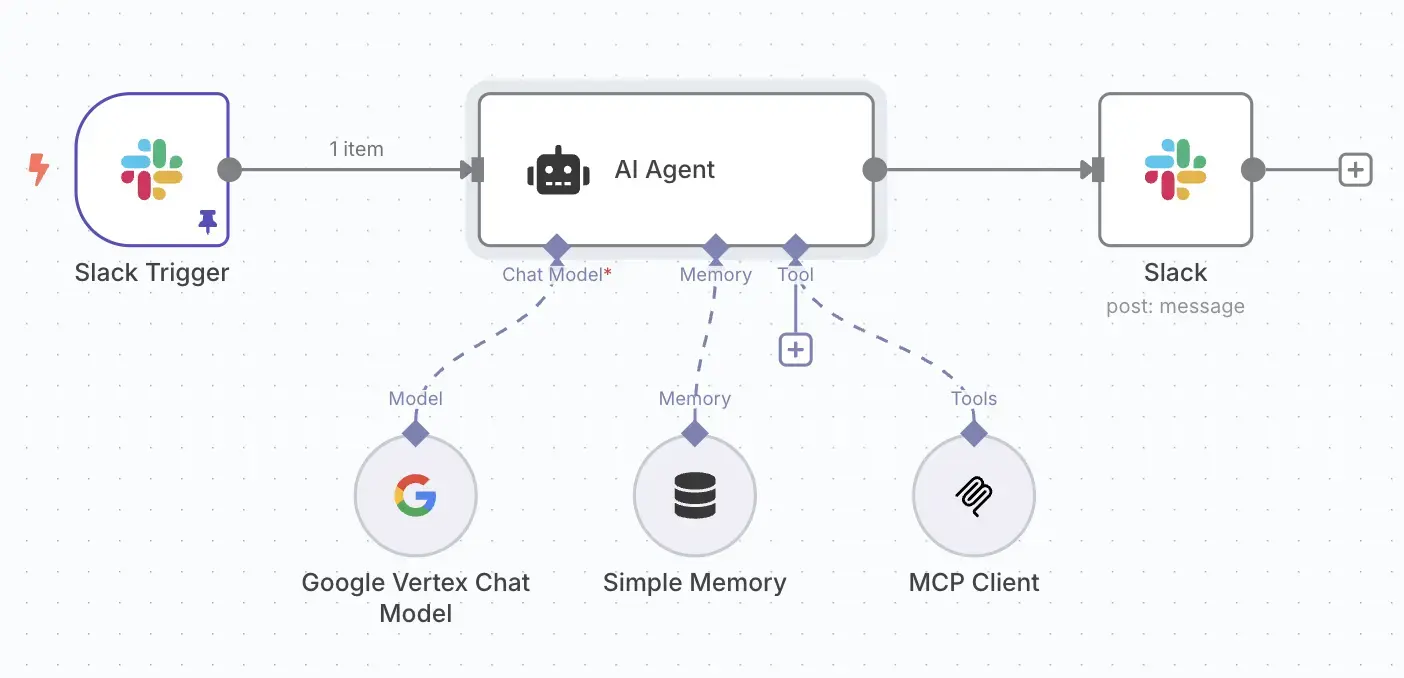
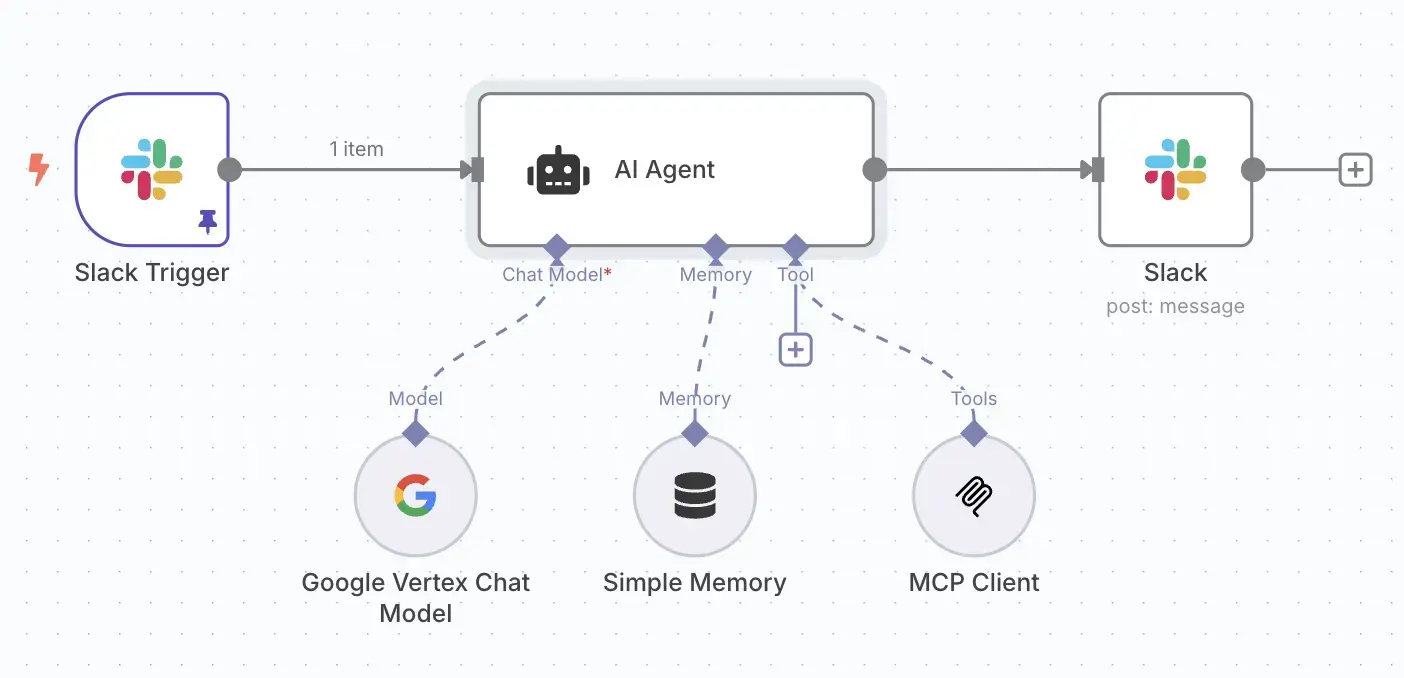
The final workflow is a flow of nodes. You can visually trace the data from the initial Slack message, through the AI processing steps, all the way to the final response posted back to the channel.
Here are the key nodes that make up our workflow:
gemini-1.5-flash-latest."You are AtlassianBot, a helpful assistant. Your job is to answer questions about Jira projects and Confluence docs. Be concise and accurate. Generic questions should first be answered using confluence_search. For status updates or things that might be in a ticket, use jira_search. To get the URLs of the pages or tickets use confluence_get_page or jira_get_page."mcp-atlassian server. We configure it to make an HTTP POST request to the internal Kubernetes service address of our MCP server (e.g., http://mcp-atlassian-service.mcp-atlassian.svc.cluster.local:9000/sse). The body of this request will be a JSON-RPC payload that the AI agent will construct itself to call a specific Atlassian function, like confluence_search.Let's make this real. Imagine this conversation happening in your Slack:
User in the #customer-support Slack channel:
@AtlassianBot Can you find the Confluence page for our Q3 OKRs and give me a summary of the key results for the engineering team?
The Bot's Internal Process (orchestrated by n8n):
confluence_search tool with the query "Q3 OKRs".mcp-atlassian server.The Bot's response posted in the Slack thread:
Of course! I found the "Q3 2025 OKRs" page. For the Engineering team, the key results are:
This whole exchange happens in just a few seconds, right in the flow of conversation. That's the power and efficiency of the system we've just built. As a final thought, you can decide if you want to use a single, combined MCP client or dedicated clients for Jira and Confluence. A dedicated client may allow for more precise prompts, which might lead to slightly better results.
In this deep dive, we've bridged the critical gap between team collaboration in Slack and the official record in Atlassian. By leveraging a modern, scalable tech stack, we've transformed a common productivity bottleneck into a seamless, conversational workflow.
We started creating a standardized, reusable bridge to our Atlassian data. We chose n8n as our developer-friendly automation engine, using its native AI capabilities to orchestrate the entire process.
The entire solution was deployed on a production-grade Google Kubernetes Engine (GKE) cluster, managed with Terraform and Helm. This Infrastructure as Code approach ensures our system is not only powerful but also resilient, scalable, and reproducible.
The result is more than just a chatbot; it's a powerful AI assistant that brings vital information directly to your team's conversations. By eliminating context switching and making data access instantaneous, we empower our teams to stay in the flow, make faster decisions, and ultimately, be more productive. This architecture serves as a robust blueprint for building your own intelligent, integrated solutions.
Agents in Dialogue Part 1 of 3: MCP - The Universal Connector for AI and its Too…
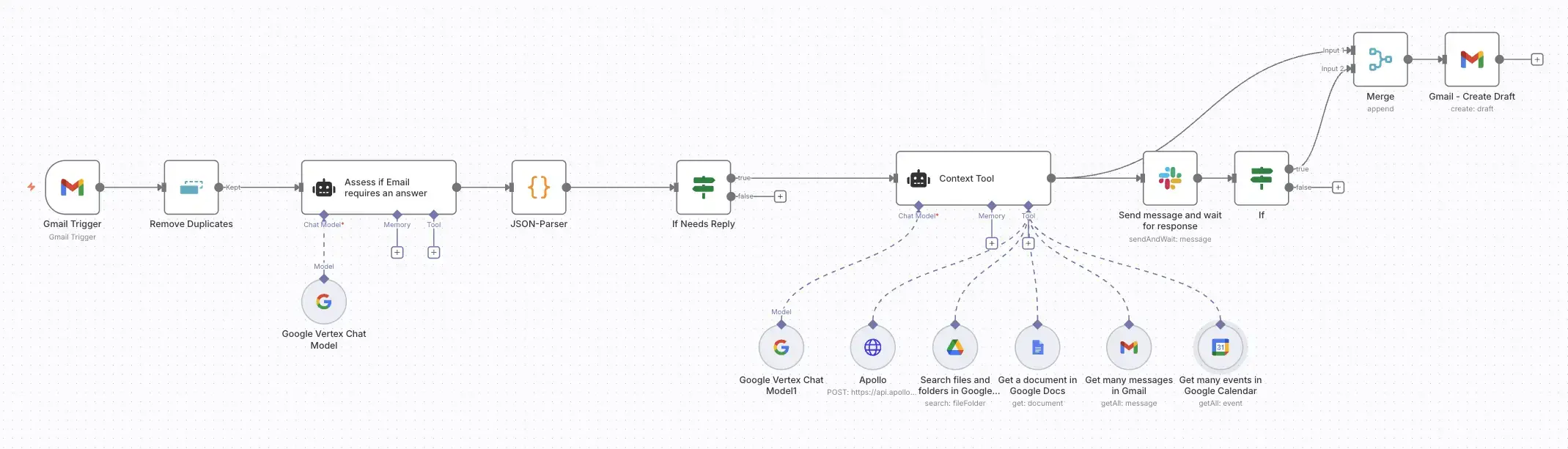
Build an AI-powered email assistant that gathers context from your calendar, doc…
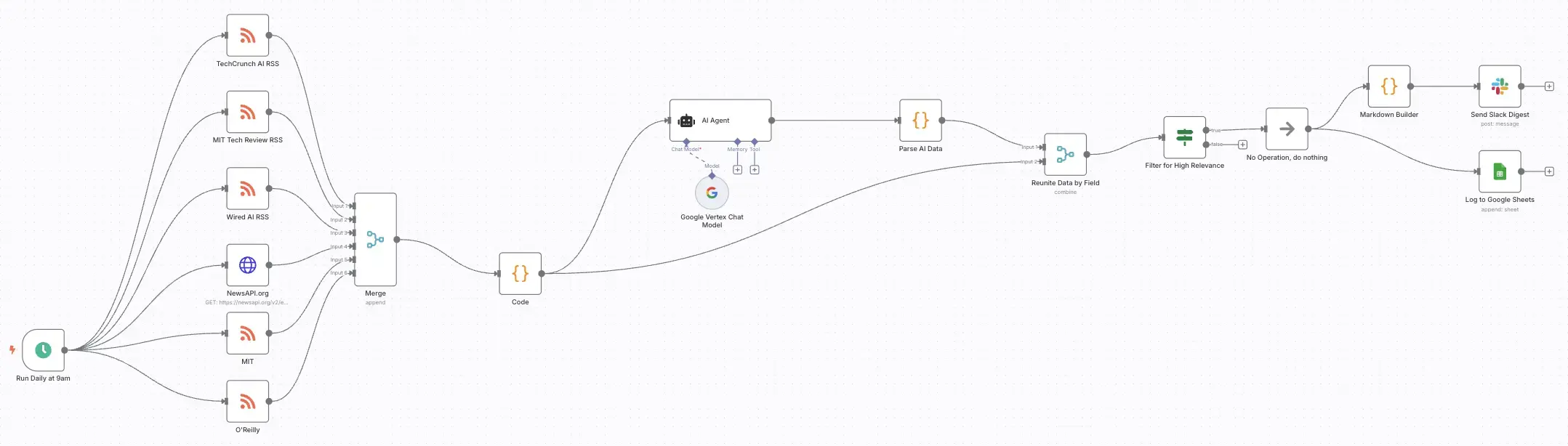
Build an automated workflow gathering AI news from multiple sources. Use LLMs to…
Get a shared vocabulary of proven Transformation Patterns, common Anti-Patterns, and Paradigm Patterns to have more effective, data-driven conversations about your strategy and architecture.
For a personalized starting point, take our free online assessment. Your results will give you a detailed report on your current maturity and suggest the most relevant patterns to focus on first.
Every Tuesday, we deliver one short, powerful read on AI Native to help you lead better, adapt faster, and build smarter—based on decades of experience helping teams transform for real.